 FolderHue
How to make custom folder icons in Windows
A custom folder icon tells you what is inside before you open it. The usual way means searching the web for .ico files that rarely match. FolderHue builds the icon for you from a color, a symbol, an emoji, a word or a picture, at every size Windows needs.
Steps
Open the folder in FolderHue
Right-click the folder and choose Folder color → More colors and icons…, or drag the folder onto FolderHue's window.
Pick a color and a style
Choose a color on the Colors tab, then a folder style on the Shape tab: Original, Modern, Classic, Flat, Two-tone, Rounded, Vivid, Open, Outline, Glass or Neon.
Add a symbol, emoji or text
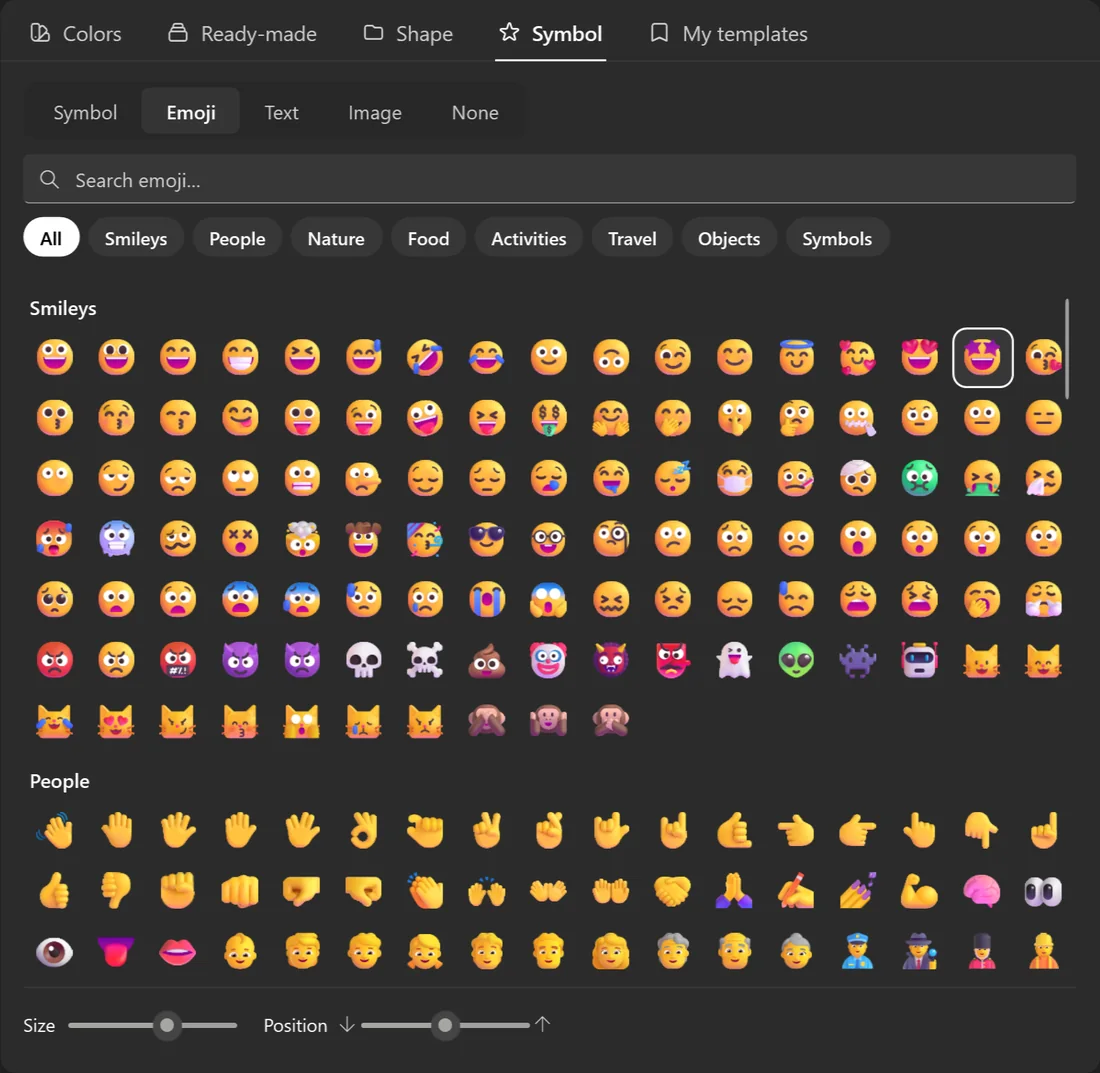
On the Symbol tab, search more than 7,000 symbols or every emoji, or type a short word. Set its color, size and position.
Apply
Check the live preview at the real File Explorer sizes, then click Apply. Save the look as a template to reuse it on other folders.
Why small sizes matter
File Explorer shows folders at many sizes, from 16 pixels in the navigation pane to 256 in Extra large icons. A downloaded icon often looks blurry when small. FolderHue draws each size on its own, so the symbol stays sharp.
Start from a ready-made folder
If you'd rather not design one, pick from 170 ready-made folders for work, study, development, media and games.
Questions
Do I need .ico files?
No. FolderHue creates the icon file and saves it inside the folder.
Can I export the icon?
The icon is saved as a hidden FolderIcon-….ico file inside the folder, so it goes wherever the folder goes.